HMI Quick Guide
This guide is written for operators running the Inspection Table. It explains how to power up the panel, connect it to the PLC, and run the machine. Technical protocol details are excluded; focus on the screen steps and what to do if something isn’t responding.
1. Starting the Inspection Table
- Plug in the Inspection Table to power it on.
- Wait for the Main screen to appear. If it does not, notify maintenance.
2. Main Screen
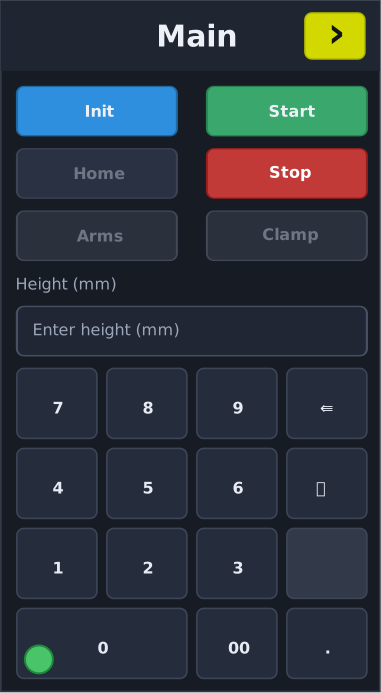
- Init: run this first after power-up or a fault. The button is grey before you press it, turns blue while the PLC is arming, and goes green once the machine is ready for motion.
- Start: enter the target height (in millimetres) in the text box, then press Start. The button stays disabled (grey) until Init has completed, the PLC is homed, and the clamp is released. It turns blue while the move is running, latches green once the target is reached (stays green until the next move/jog), and shows red if the clamp is engaged or a start error occurred (travel beyond the calibrated height, missing calibration data, or a conversion failure). The machine only moves when the PLC reports it is safe.
- Home: sends the machine back to its reference position. The button is grey when idle, turns blue while homing is in progress, then switches to green after the PLC reports it is homed.
- Stop: immediately halts motion. The button stays red during normal operation and greys out when the PLC refuses Stop (for example, while Init or Home is running).
- Arms: tap once to pulse the arm mechanism. The button only enables after Init, when the PLC reports it is homed and the clamp is fully locked; it shows red when it is ready to fire, flips to white once the arms sensor confirms engagement, and greys out whenever those interlocks drop.
- Clamp: tap once to pulse the clamp. In the ready state the button renders grey, turns green when the clamp is locked, shows red if the clamp output is active but not yet locked, and stays disabled unless the PLC is homed and the arms sensor says it is safe to clamp.
- Height box: type a value in millimetres; use the on-screen keypad. Clearing the box does not cancel a move already queued; the PLC keeps the last target until a new one is sent.
- Keypad tips:
⌫deletes the last digit, the trash icon clears the field,00adds two zeros quickly,.adds a decimal point. - Status dot (bottom-left): green means the last command reached the PLC, red means it failed (check power, distance, or MAC configuration).
3. Jog Screen
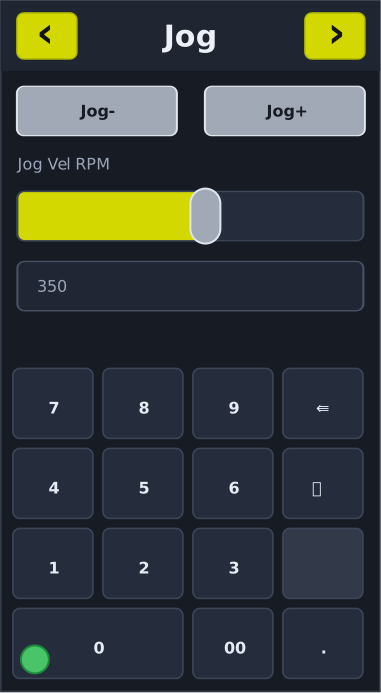
- Tap JOG+ or JOG− and hold to move in that direction. Release to stop.
- Adjust the Jog Vel RPM slider to set the jog speed (10–1800 RPM). The value updates when you lift your finger.
- Jog buttons are disabled automatically when the machine isn’t ready (Init not complete, clamp locked, or homing in progress).
4. Config Screen (Advanced Access Only)
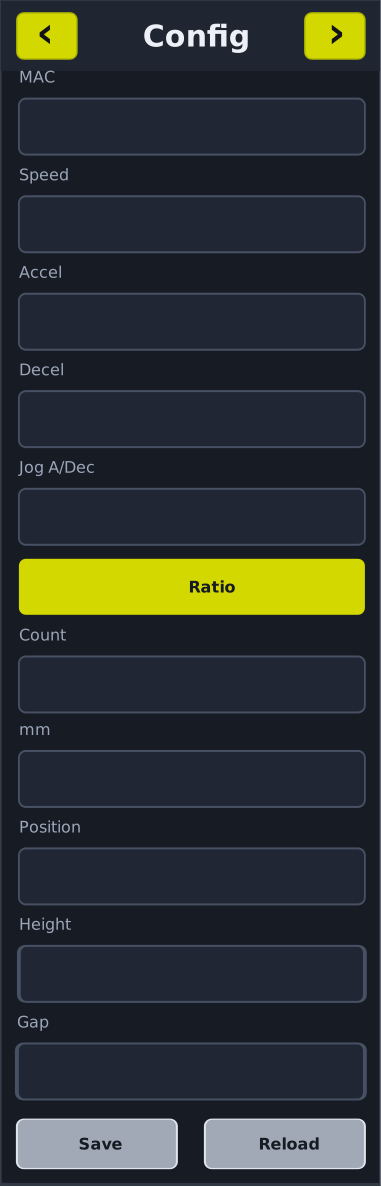
This screen is locked unless the PLC enables “Advanced” mode. If your job requires adjusting machine parameters: 1. Ask machine administrator to unlock set the machine to maintenance mode. 2. Update the values for speed, acceleration, deceleration, jog ramp, ratio counts/mm, height, and gap as instructed. 3. Tap Save to store changes on the PLC, or Reload to fetch the current values. 4. The position field shows the live reading reported by the PLC (read-only).
5. IO Screen (Advanced Access Only)
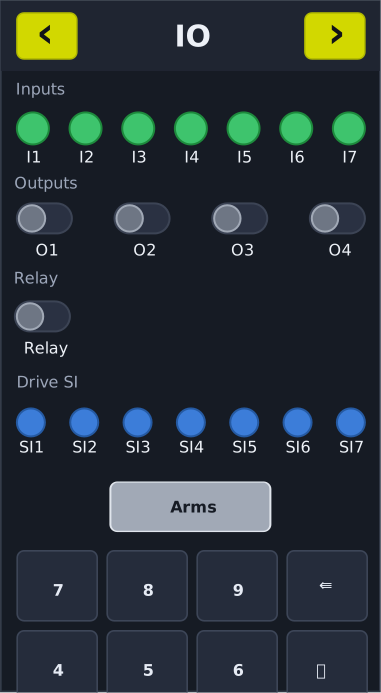
Also requires Advanced access. - Inputs: green indicators show the current state of machine sensors. - Outputs: toggle O1–O4 only if instructed. The PLC may lock these during critical operations. - Relay: dedicated switch for the relay output. - Drive SI: blue indicators for drive inputs; tap Refresh to update the readings.
6. Everyday Tips
- If Init stays active or a button flashes red text, tell maintenance—the PLC may have reported an interlock or fault.
- When the HMI can’t talk to the PLC, the status dot turns red and the console (if connected over USB) prints
!. Re-check the MAC address and confirm the PLC is powered and nearby. - Only use the Config/IO screens if you’ve been trained to do so. Incorrect settings can damage equipment.